
Introduction
If you’re planning to build a website without spending money on hosting, then using localhost/WordPress is the best solution. It allows developers and beginners to create, test, and manage websites directly on their computers without going live.
In this detailed guide, we will explain everything about localhost/WordPress, including installation, tools, benefits, and best practices.
What is Localhost/WordPress?
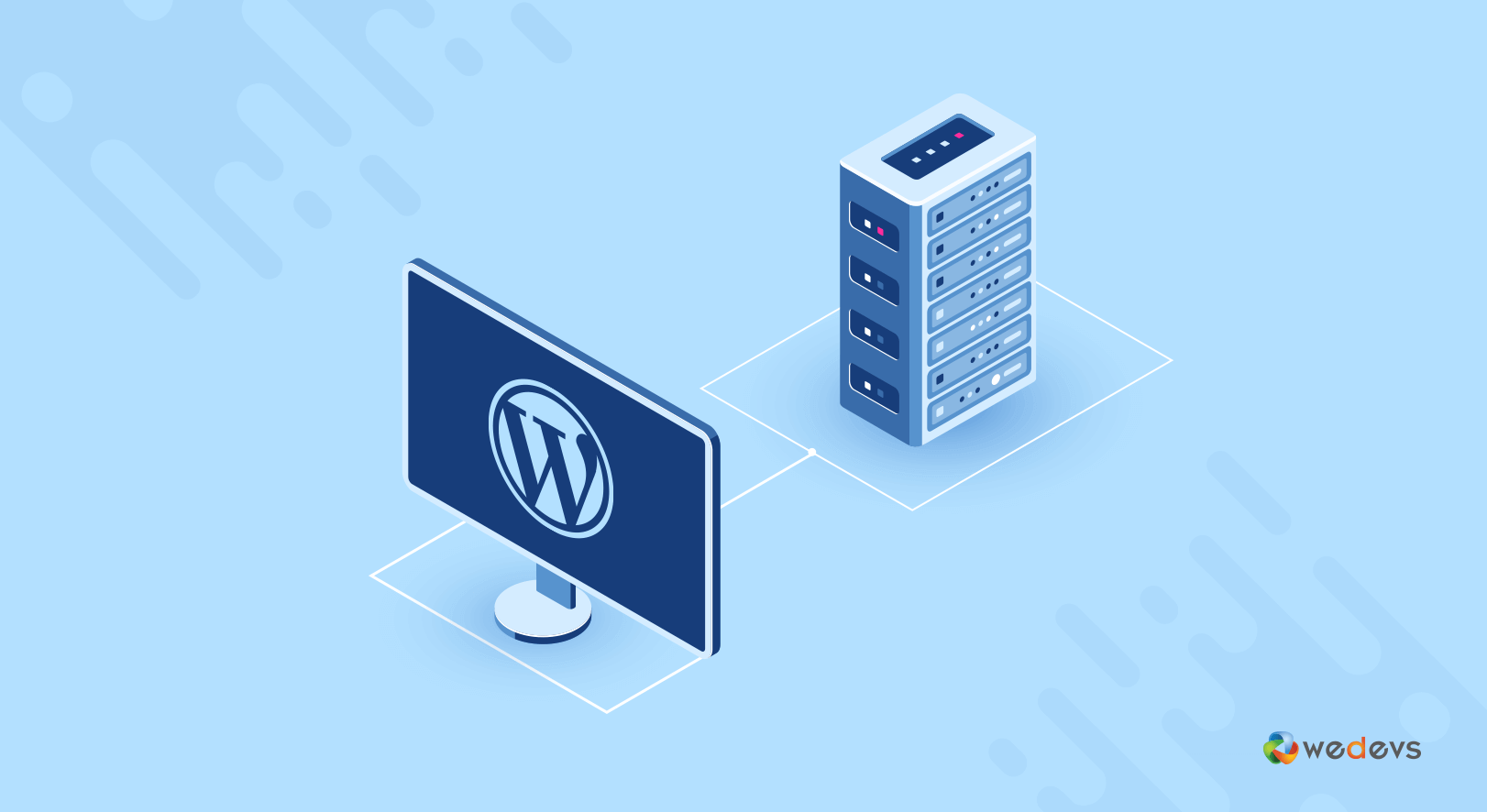
localhost/WordPress refers to installing WordPress on your local computer instead of a live server. A localhost acts as a local server environment where you can run web applications offline.
In simple terms:
- Localhost = Your computer acting as a server
- WordPress = Website-building platform
When combined, localhost/WordPress lets you build websites without needing internet or hosting.
Why Use Localhost/WordPress?
Using localhost/WordPress offers many advantages, especially for beginners and developers.
Key Benefits:
- No hosting cost
- Works offline
- Safe testing environment
- Faster development
- No risk of breaking a live site
Many developers use tools like XAMPP or WAMP to run localhost/WordPress efficiently.
Requirements to Run Localhost/WordPress
Before installing localhost/WordPress, make sure you have the following:
| Requirement | Description |
|---|---|
| Local Server | XAMPP, WAMP, or MAMP |
| PHP Version | 7.4 or above |
| Database | MySQL |
| Disk Space | At least 1 GB |
| Browser | Chrome, Firefox, etc. |
Step-by-Step Guide to Install Localhost/WordPress
Follow these steps to set up localhost/WordPress on your computer:
Step 1: Install Local Server
Download and install XAMPP or WAMP:
- Install software
- Start Apache and MySQL services
Step 2: Download WordPress
Go to the official website of WordPress and download the latest version.
Step 3: Extract Files
- Extract WordPress files
- Move them to the htdocs folder (in XAMPP)
Step 4: Create Database
- Open
localhost/phpmyadmin - Create a new database
Step 5: Run Installation
- Open browser
- Go to:
localhost/wordpress - Complete installation steps
Now your localhost/WordPress site is ready!
Understanding Localhost URL Structure
When working with localhost/WordPress, URLs look different from live websites.
| Type | Example URL |
|---|---|
| Localhost URL | http://localhost/wordpress |
| Admin Panel | http://localhost/wordpress/wp-admin |
| Live Website | https://yourdomain.com |
Best Tools for Localhost/WordPress
Here are some popular tools used with localhost/WordPress:
| Tool Name | Features | Best For |
|---|---|---|
| XAMPP | Free, easy setup | Beginners |
| WAMP | Windows-friendly | Windows users |
| MAMP | Mac support | Mac users |
| Local WP | GUI-based setup | Designers |
Common Issues in Localhost/WordPress
While using localhost/WordPress, you may face some issues:
1. Apache Not Starting
- Fix port conflicts
- Stop Skype or other services
2. Database Connection Error
- Check database name
- Verify username/password
3. White Screen Error
- Enable debugging
- Check plugins/themes
Tips for Using Localhost/WordPress Efficiently
To get the most out of localhost/WordPress, follow these tips:
- Always backup your files
- Use version control (Git)
- Test plugins before installing on live site
- Keep WordPress updated
- Use lightweight themes
Localhost vs Live Server
Understanding the difference is important when working with localhost/WordPress.
| Feature | Localhost | Live Server |
|---|---|---|
| Internet Needed | No | Yes |
| Speed | Fast | Depends on hosting |
| Cost | Free | Paid |
| Accessibility | Only you | Public |
When Should You Use Localhost/WordPress?
You should use localhost/WordPress in these situations:
- Learning WordPress
- Testing themes/plugins
- Developing websites
- Fixing bugs safely
- Building client demos
How to Move Localhost/WordPress to Live Server
Once your site is ready, you can migrate it to a live server.
Steps:
- Buy hosting & domain
- Export database
- Upload files
- Update URLs
- Test website
Plugins like:
- All-in-One WP Migration
- Duplicator
can simplify the process.
SEO Tips for Localhost/WordPress Users
Even though localhost/WordPress is offline, you can still prepare your website for SEO:
- Write SEO-friendly content
- Use proper headings (H1, H2, H3)
- Optimize images
- Install SEO plugins like Yoast
- Improve site speed
Security Tips for Localhost/WordPress
Even on localhost, security matters.
- Use strong passwords
- Disable unused plugins
- Keep backups
- Update regularly
Future of Localhost/WordPress Development
With increasing demand for fast development, localhost/WordPress is becoming more popular among developers.
Modern tools now offer:
- One-click installation
- Cloud sync
- Team collaboration
This makes localhost/WordPress a powerful development environment.
Conclusion
Using localhost/WordPress is one of the best ways to learn and build websites safely and efficiently. Whether you’re a beginner or a developer, working locally gives you full control without any risks.
From installation to deployment, mastering localhost/WordPress will help you become a better web developer and save time, money, and effort.